
Order Management
Viewing Orders
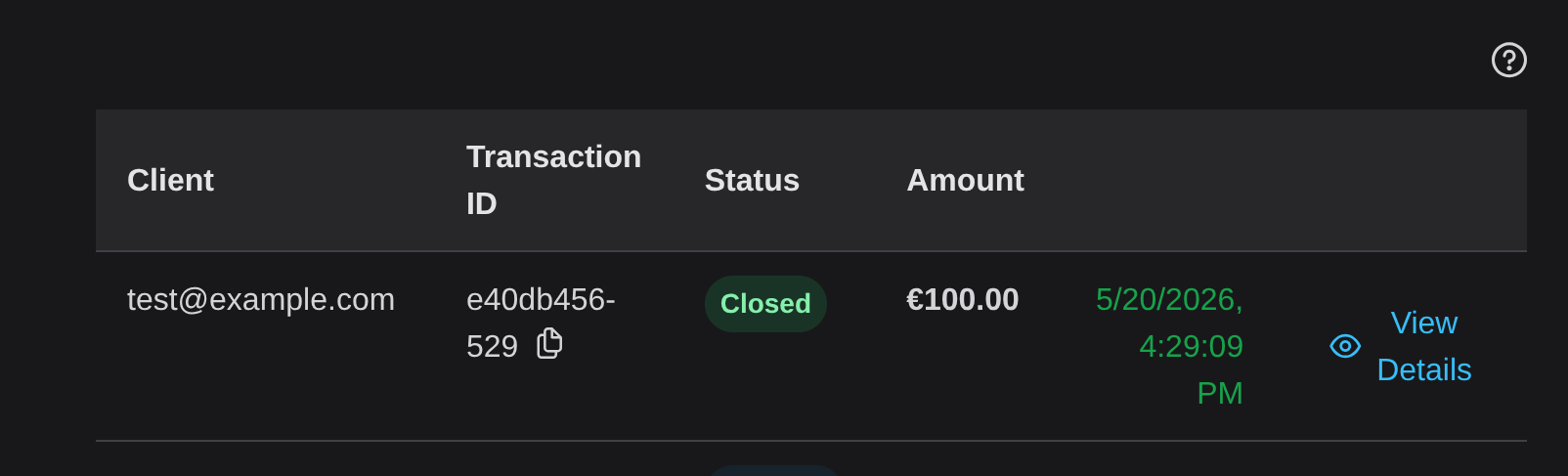
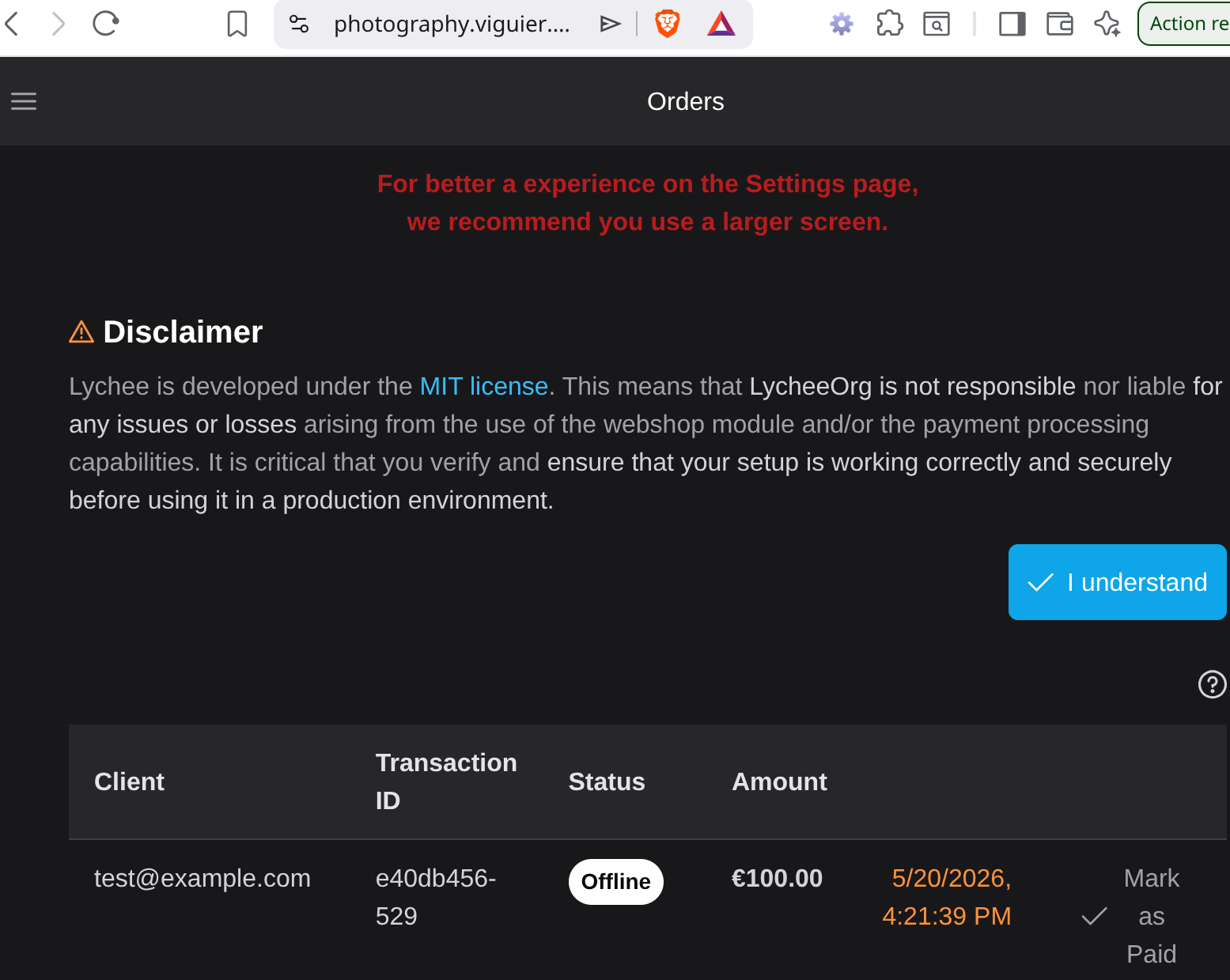
Section titled “Viewing Orders”Access the orders page from the left menu in Lychee. The list shows the client, the transaction ID, the status, the amount, and the date. Baskets that were never carried through to payment are hidden unless you tick Show pending orders.
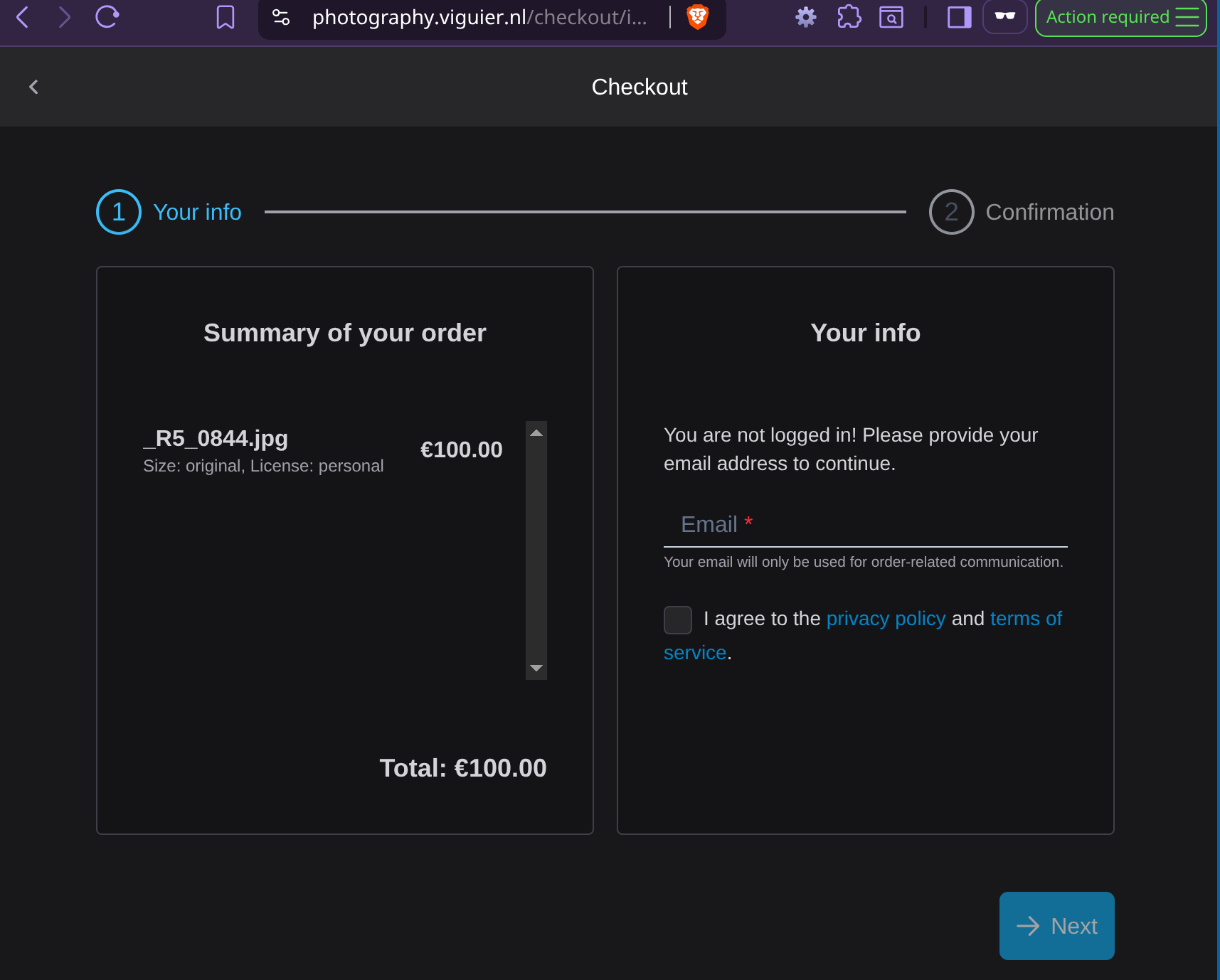
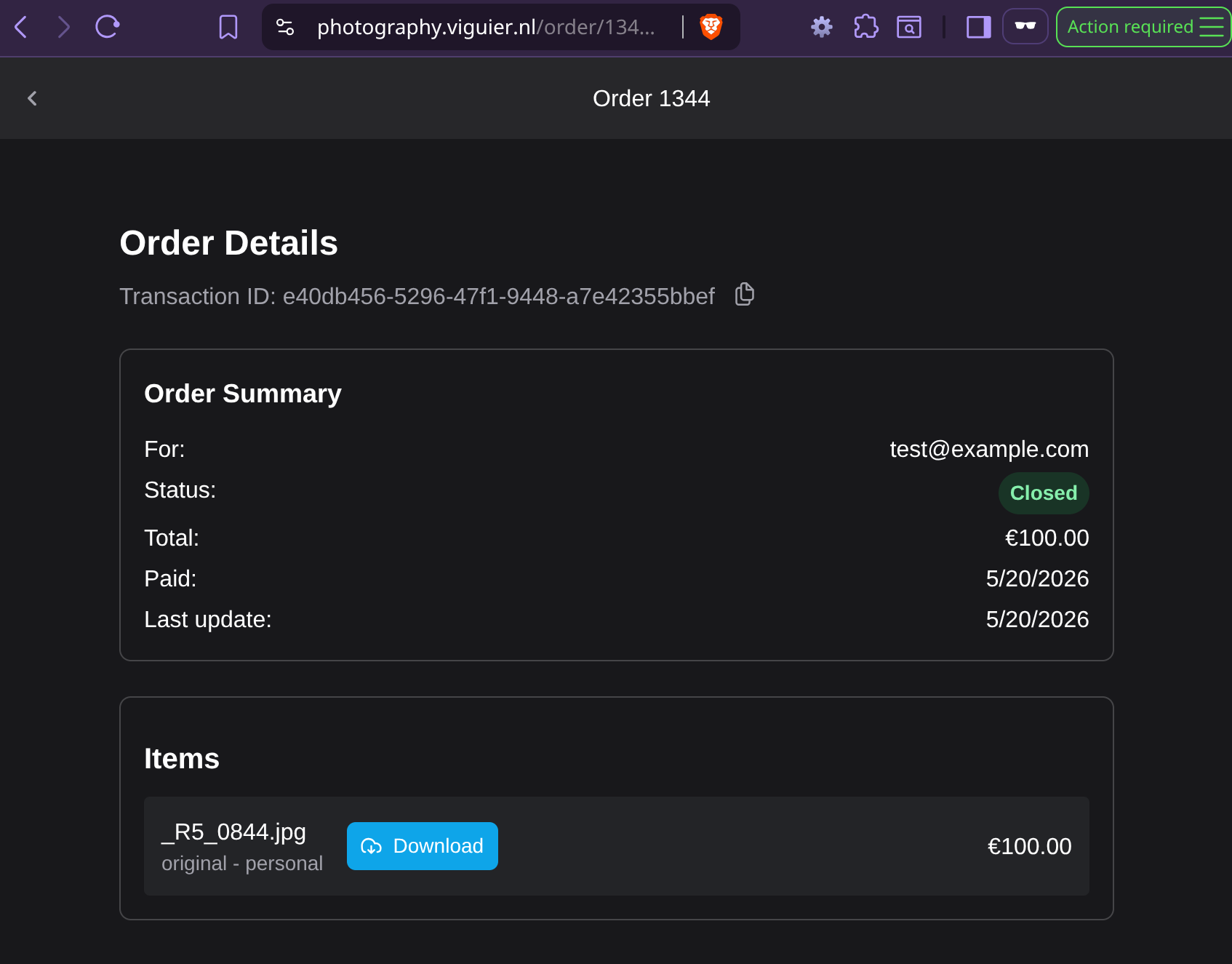
Opening an order shows the customer details, the shipping address when the order contains prints, and every line item with its size, license, and note.
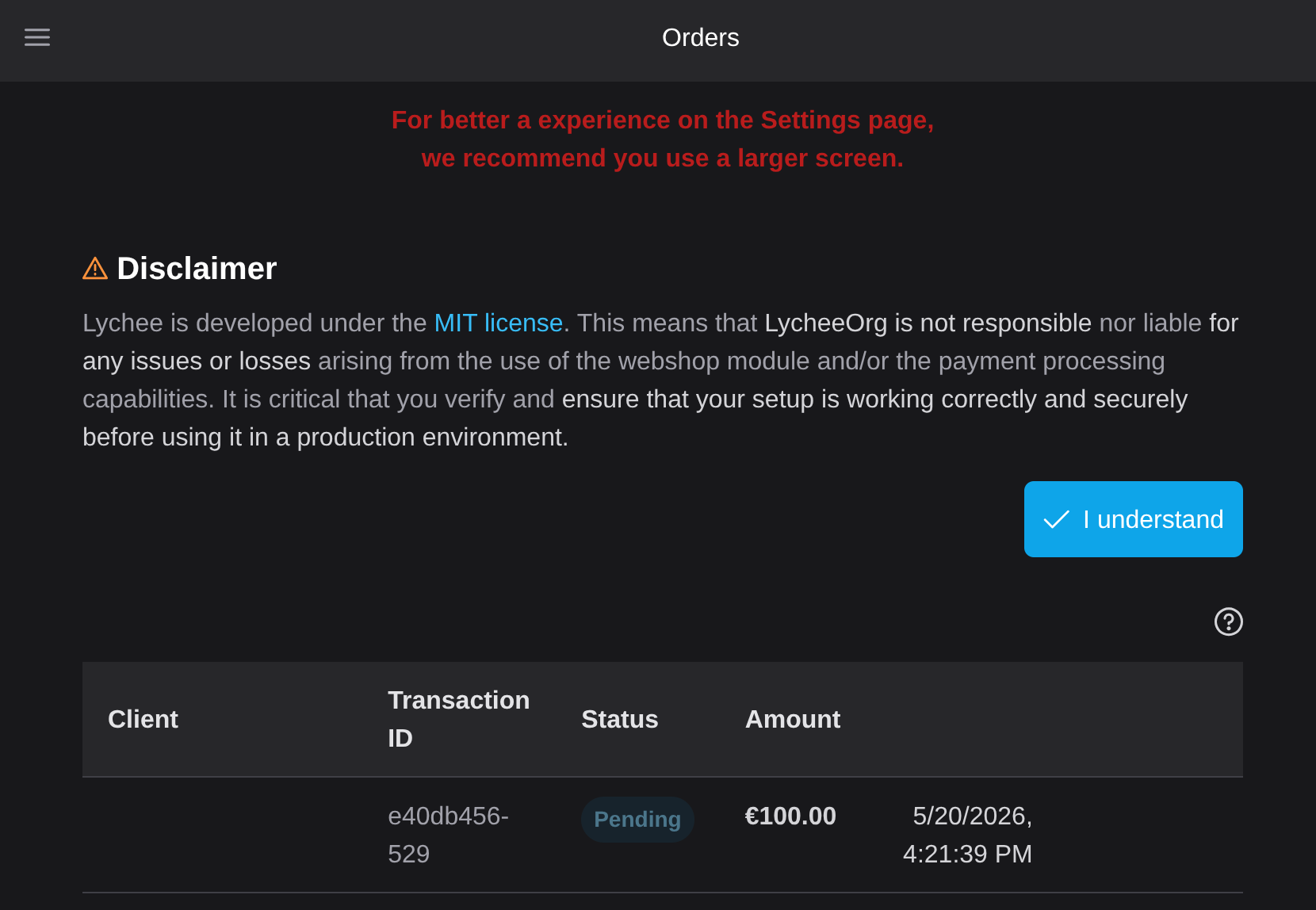
Order statuses
Section titled “Order statuses”| Status | Meaning |
|---|---|
pending | The order exists but has not been paid. This is also the state of an abandoned basket |
processing | The payment is being processed by the gateway |
offline | Payment is to be settled manually, by transfer, cash, or invoice |
completed | The order has been paid |
closed | The order has been delivered. It is final and no further action is possible |
cancelled | The customer abandoned the payment |
failed | The gateway rejected the payment |
refunded | The payment was refunded. Defined and stored, but no interface action sets it today |
An order can be paid again from pending, failed, and cancelled, so a failed attempt is not a dead end for the customer.
Fulfilling Orders
Section titled “Fulfilling Orders”Auto-fulfilment
Section titled “Auto-fulfilment”With webshop_auto_fulfill_enabled on, Lychee reacts as soon as an order is paid: for every item sold as a medium, medium2x, or original variant, it links the stored file and the download becomes available immediately.
Items that Lychee cannot produce on its own - the full variant, pixel sizes, and prints - are left for you.
The order then moves to closed only if every item has its content. An order mixing an automatic download with a print stays in completed until you have handled the print.
Manual fulfilment
Section titled “Manual fulfilment”For the items Lychee cannot deliver:
- Open the order from the list.
- On the line item, enter the content URL where the customer can download their file, or the tracking code or URL for a shipment.
- Click Mark as Delivered. With
webshop_manual_fulfill_enabledon, this also runs the automatic linking pass for any remaining variant items.
The order then moves to closed. Customers see Awaiting shipment on a print line until a tracking link is set, and Download not available (yet) on a digital line until its URL is set.
Marking Orders as Paid
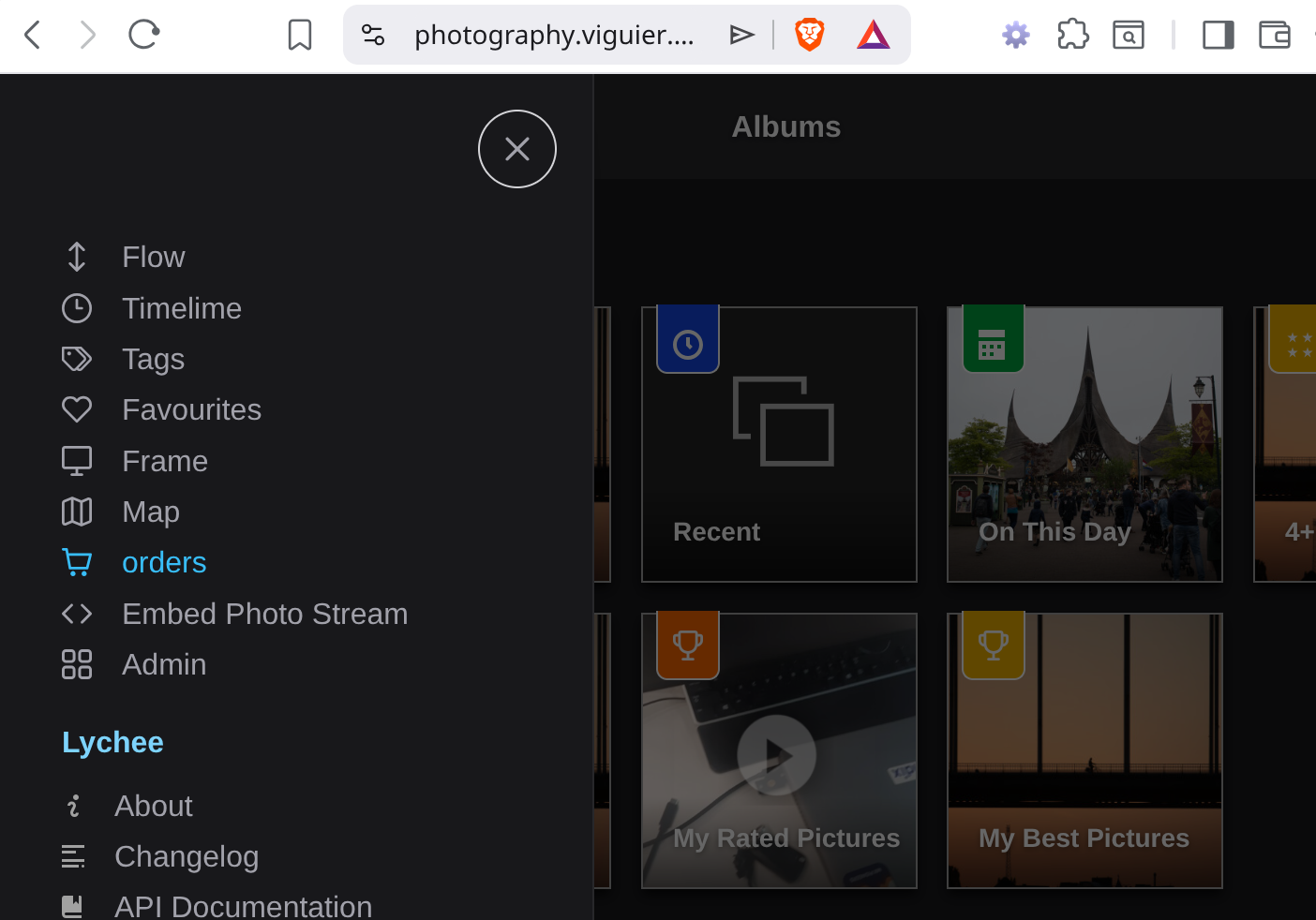
Section titled “Marking Orders as Paid”Mark as Paid applies to orders in the offline status - those placed without going through a gateway. It moves the order to completed and triggers auto-fulfilment when it is enabled.
- Open the order.
- Click Mark as Paid.
For PayPal and Mollie payments there is nothing to do: the status is updated when the gateway confirms the payment.
Customer Download Experience
Section titled “Customer Download Experience”Customers do not need an account to reach their order:
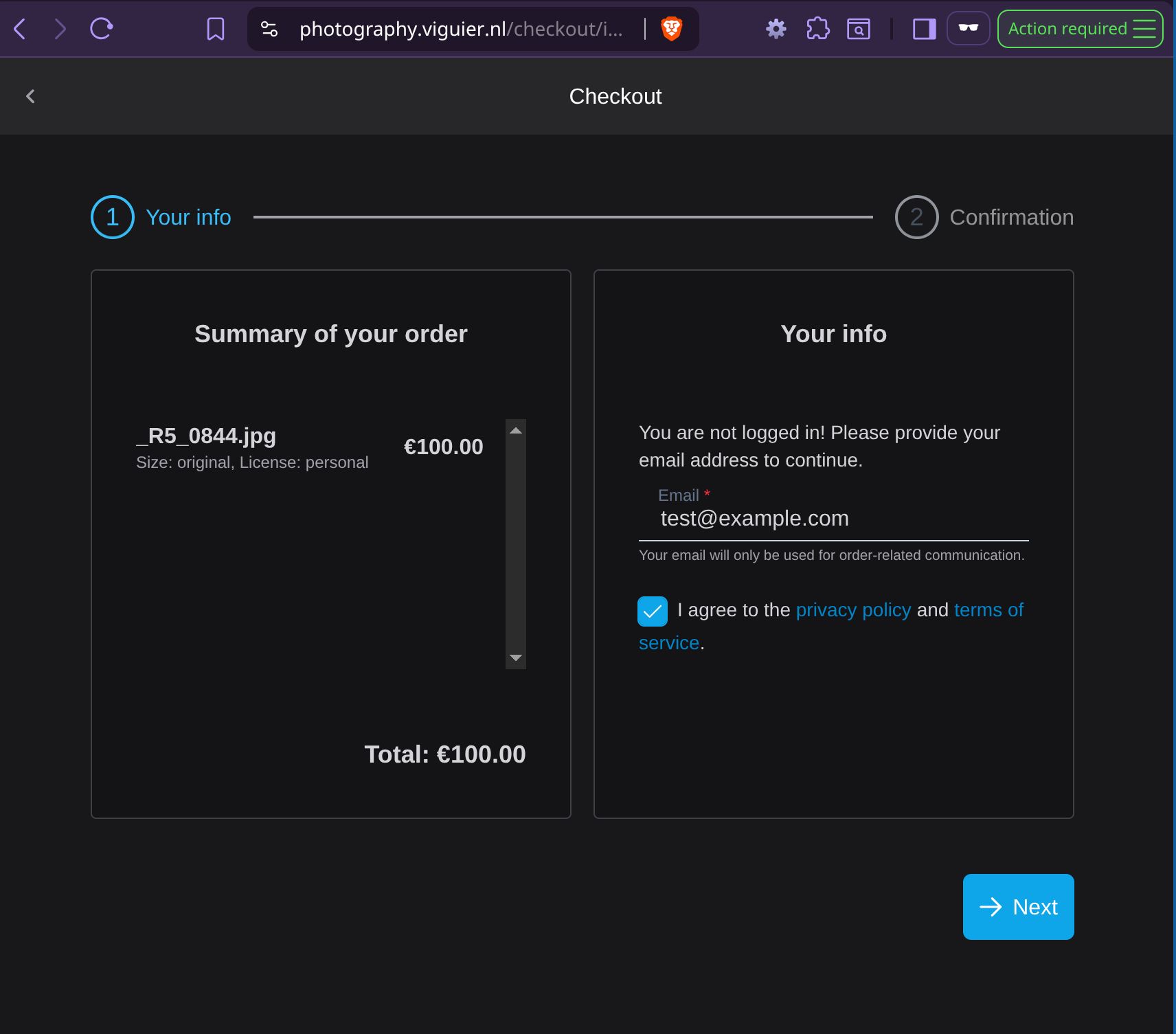
- After checkout they are given an order number and a transaction ID, and told to keep both.
- The order page asks for the transaction ID to open the order details.
- Once fulfilled, each line offers its download or its shipment tracking link.
Admins can copy the order link from the order details and send it to the customer directly.
Cleaning up abandoned baskets
Section titled “Cleaning up abandoned baskets”Guest checkouts that are never completed leave pending orders behind. The orders page reports how many are stale and offers Clean stale orders; the same task is available from the maintenance page.
An order is deleted only when all of the following hold:
- it was created more than two weeks ago,
- it belongs to a guest, with no user account attached,
- it has no items, or it is still in the
pendingstatus.
Orders attached to a user account are never removed by this task, whatever their age, so buyers keep their history.